
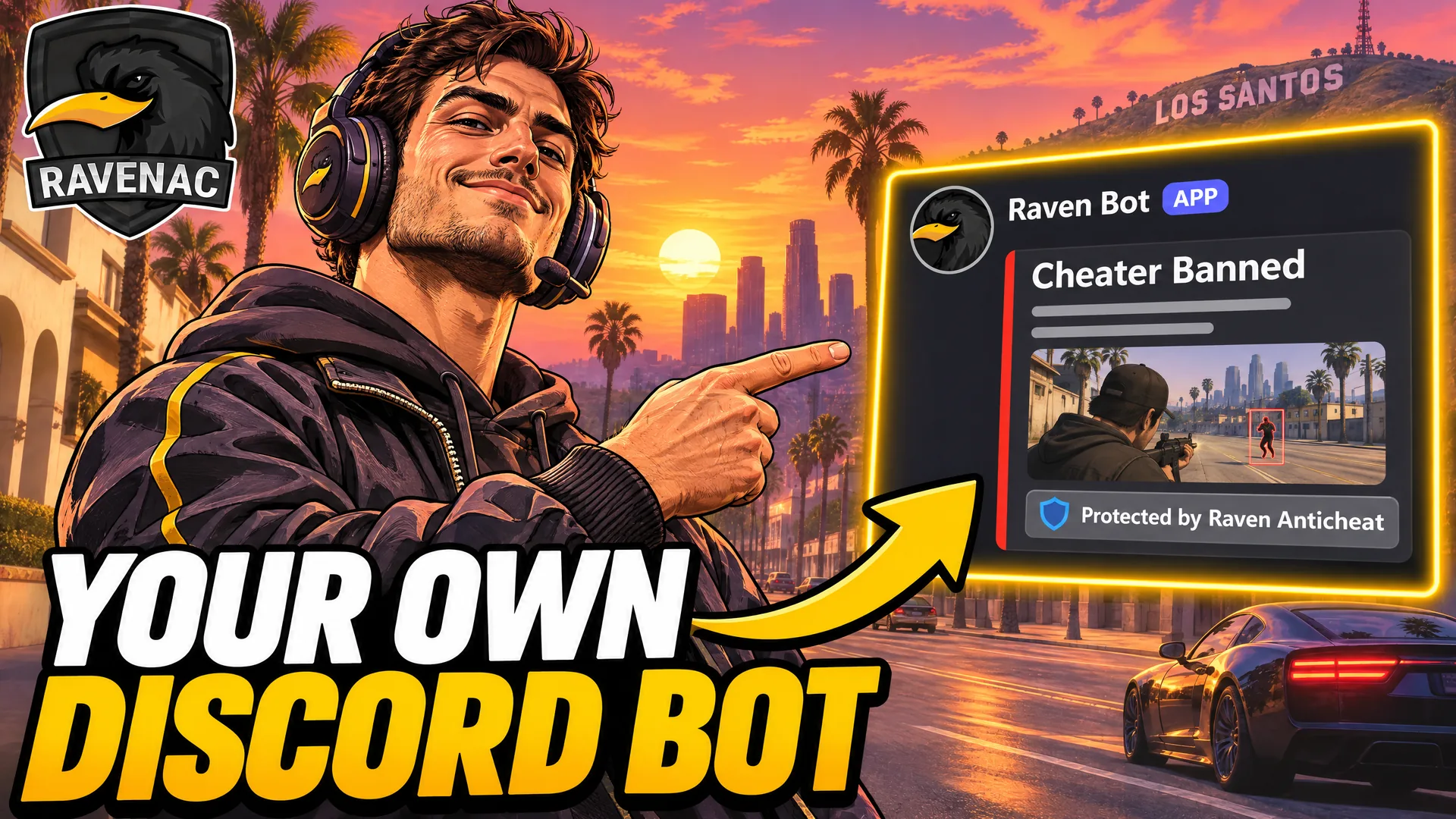
Every Raven server can now run a Discord bot of its own. You make the bot, paste its token on the dashboard, and Raven runs it. It posts your ban and kick logs, announces bans to your community, answers your staff's slash commands, and reads your Discord roles to decide who may join the game server and who is staff in it.
Connect a bot in a couple of minutes
- Create an application in the Discord Developer Portal. Its name and picture become the bot's.
- On the Bot page, press Reset Token and copy the token.
- On the dashboard, open Settings, then Discord Bot, and paste it. Raven checks the token with Discord, and from then on the bot runs on that token.
The token is encrypted the moment it arrives and is never shown again, to you or anyone. One bot belongs to one Raven server, so its logs, commands and roles never mix with another server's.
One Discord server, checked for you
The bot works in one Discord server, picked from cards that show each server's icon, members and how many are online. Its slash commands are registered there only, and any other server it sits in is ignored. You can make it leave those from the same page.
A setup check reads the bot's real permissions in that server, channel by channel, the way Discord works them out. Instead of a log that silently never arrives, you see a line like "missing Embed Links in #ban-logs", with the fix. Most fixes are one click on Re-invite, which adds the bot back with every permission it needs.
Ban and kick logs, from the webhooks or the bot
Logs used to come only from the webhooks in Main Settings. Now one switch on the Logs tab decides who posts them: the webhooks, or your bot in the channels you pick. Never both, so no action is logged twice. If the bot is turned off for a while, the webhooks take over again, so a log is never lost.
Design every message
The ban log, the kick log and the live ban announcement each get their own design, with a live preview drawn from the exact message the bot will send, under your bot’s own name and picture. Out of the box the ban and kick logs read exactly like the logs Raven already sends: the same heading, the same lines in the same order, and the screenshot or the Raven banner.
- Two styles. The card, the newer Discord design the Raven bot uses for its own action logs, or the classic embed with fields side by side.
- Every part. Text above the message and a role to ping, the author line, the title and its link, the text, the colour, the corner picture, the large picture with a fallback for when there is no evidence, every built-in field (shown or hidden, renamed, side by side), up to ten fields of your own, and the footer.
- Values that fill themselves in.
{player},{reason},{by},{id},{server},{discord}and{time}work in every text box. A player name that contains markdown shows exactly as typed, and only the role you chose can ping. - Send a test. Posts the design to its channel, saved or not, with a made-up player. The test never pings the role.
One part is fixed: every message the bot sends carries a Protected by Raven Anticheat button that opens the Raven website. The footer is yours, so it never repeats the button.
Live bans for your own community
Pick a Live bans channel and the bot announces bans to your players as they happen, in its own design. Choose Detections only, so a ban your staff typed by hand stays private, or Every ban. Choose Right away, or After 15 minutes, which only announces a ban that still stands, so a mistake you lift in time is never posted. A ban is never announced twice, and switching the channel on never posts a backlog.
The default announcement is laid out like the Raven bot’s own live bans: the player, the reason in a code block and the screenshot, with a View evidence button beside the Raven one. It never shows their identifiers.
Discord roles decide who may join
On the Roles tab, a player can be required to be in your Discord server, to hold one of the roles you pick, or to hold none of the roles you block. Each case has its own message, shown on the same connection screen a ban uses. While this is on, players need Discord linked in FiveM, so unlinking Discord is not a way around a blocked role.
The roles are read from Discord when the player connects, so somebody who was just given the role can join within seconds. If Discord cannot be reached, the role check is skipped for that join rather than turning a real player away, the same way every other connection filter fails open.
Discord roles as in-game staff
Moderators by role turns your Discord roles into in-game status:
- Whitelisted roles are skipped by detections, like a whitelisted moderator.
- Staff roles make their holders in-game Moderators or Admins with the abilities you tick, the same abilities as the In-Game Moderators page. Roles add up: a player with two staff roles gets the higher level and every ability either one gives.
Somebody entered on the In-Game Moderators list by hand keeps exactly what they were given there. Changes reach players already in game when you save, then within a minute of a role change in Discord if the bot has the Server Members Intent turned on in the Developer Portal, and within five minutes without it. Nothing changes in your FiveM resource.
Slash commands for your staff
/players, /lookup, /kick, /ban and /unban work in your Discord server. Each checks the same permission the dashboard does, against the Raven account the person signed in with through Discord, and only the person who ran it sees the reply.
Who can change it
The page has its own Discord Bot permission on the Admins page. View shows the bot, its channels and its setup check. Edit lets somebody change the token, channels, designs and commands, and is its own tick because a bot token controls a whole Discord bot. Changing who may join also needs Settings edit.
See it before you set it up
Every tab, the message designer and its preview work in the live demo, with a sample bot and a sample Discord server. No account and no token needed.